Showing posts with label technology. Show all posts

Sunday, April 13, 2014

Grand View Universty TeachMeet


Yesterday was a day of learning and inspiration.  I spent the day at the Jacobson Visiting Scholar Symposium at Grand View University.  Last year was the the initial year for this event.   I attended then and I enjoyed it.  This year was even better.

The morning started out with a delicious breakfast provided by the university.  We started the day with a keynote address by visiting scholar, Dr. Erica Boling from Rutgers University.  Dr. Boling talked about Transforming Education through Multimedia and Technology.

Following the keynote, we chose between three breakout sessions, presented by Dr. Boling, Alex Kitchen of the Bondurant Schools, and Steven Hopper from Heartland AEA.  I sat in on Dr. Boling's presentation about using screencasting.  She talked about the power of  using video, particularly video created by students, to learn.  Some of the examples she showed us using tools like Animoto carried that powerful message forward.

I used to use Animoto a lot, but during the past couple years I haven't.  Dr. Boling showed us a video that she has used to introduce herself to students, which is something I used to do, but for some reason stopped.  I also used to use Animoto as a communication tool with parents to show some of the great work kids were doing, and I am going to get back to doing that.

The afternoon was devoted to fifteen minute TeachMeet Sessions, including one presented by yours truly.  I came away with lots of new things to explore, as well as reminders to return to some things I have tried in the past.

Some of the things I want to explore are:

  • The communities on Google +.  I didn't have any idea how many there were.  
  • Photopeach, which works like Animoto
  • For screencasting I have used Jing.  I want to check out Screenr and Screencastomatic.
  • Popplet for mind mapping.  This was a session presented by Christine Smith.
  • Oh, yes!  The Too Noisy App for the iPad, which totally cracked me up.  I am afraid my kids might enjoy setting it off, but it was funny.  That was presented by Jen Wells, who also talked about other Classroom Management Technology like Class Dojo.
I presented a session on Digital Story Telling.  I showed the group the things my students have created using Bitstrips for Schools, Voki, Kidblog, and Storybird.  You can see the things we talked about by visiting our class Wibki.  The links are on the writing page.

I was really excited to see one of my colleagues from school there.  It was nice to share the day with one of my coworkers.  This was time well spent, and it reminded me how powerful some of these tools are,  not to mention the energy and ideas shared by fellow educators.

Wednesday, March 19, 2014

Edmodo


The Information Highway!  Our school is celebrating our centennial this year. Everyone in the school has created a tile that will be part of a centennial mosaic.  This is mine.  I was inspired by a graphic on my Printshop Deluxe program. 
During the month of January, I was doing so well with my blogging.  Then I hit February with parent/teacher conferences, report cards, and more and more testing, and I lost my momentum.  I said in an earlier post that it might take me two months to do the 20 Day Blogging Challenge, and it turns out it's more like three months, but I'm not giving up.  Here goes day 20!

20 Day Blogging Challenge, Day 20:  What is a website that you can't live without?

What looks like Facebook, but is safe for kids to use, and is actually a great educational tool?  Edmodo!  That's what!

I have used Edmodo occasionally for about three years now, but I have been very inconsistant with it, and I have barely tapped the possibilities.  Last summer I participated in an on-line conference to learn more about it called Edmodocon.  I wrote about it here.

I am working to increase my use of Edmodo for reading discussion.  Earlier this month I created an on-line quiz.  We had a few snags, but it will go easier the next time.  I’m also trying to learn how to create assignments.

In the past we have used Edmodo for research.  I decided to try more of a flipped classroom approach, with students viewing videos, and reading information involving the weather unit we are working on for Science.  For homework, students were to spend 20 to 30 minutes visiting the websites that I posted links for.  They were to comment about at least three things they learned.

When I checked around nine o'clock that night, I could see that 20 of my 29 students had spent time reading and commenting.  Five more students got on Edmodo during my before school computer lab time.

When we started science class, we could launch right into the next step of our learning, so I felt that it was a great success.

Edmodo is also a great collaboration tool for both teachers and students..  Earlier this school year my class participated in the Global Read Aloud. I joined a teacher group and got some great instructional ideas.  My students joined a group where they could discuss the book Out of My Mind with other students from around the world, and all from the comfort of our own classroom.

If you are unfamiliar with Edmodo, check out this video by Klista Rader.  It gives a good overview of how to set it up and some of the possibilities.


Saturday, February 15, 2014

On-line Learning


I am still working on the 20 Day Blogging Challenge by Kelly Hines.  I am still on Phase 1 and this is Day 19:  Share a topic/idea from class this week.  What is one thing you did with students that you will/will not do again?

During the past three weeks I have been enrolled in an on-line class about teaching on-line.  This is the first in a series of classes that I plan to take through our state Area Education Association.  This class is titled "Introduction to the On-line Learner"  Here is a link to the series of classes being offered.


I have had an interest in technology for some time now.  It began in 2009 with another on-line class called Using Technology in the Classroom.  Prompted by that class, I created a class website and blog, and began building a PLN (Personal Learning Network) via Twitter.  Since then my use of technology with my students has grown.  This on-line class has made me think about how I use technology now, and how I might increase the effectiveness of what I do with my fourth graders. 


The needs of elementary students is a lot different than that of older students.  People assume that kids are comfortable with technology, but that isn’t true for everyone.  Some of my kids have ready access to computers and the internet, but some do not.  The majority of my students have used computers to play games, but utilizing it to research and write is new to them.  Key for me is using technology to create, not just consume.  So far this year my students have used a wiki to do a webquest, they have their own blogs on Kidblog, and they regularly utilize TenMarks, Spelling City, and Xtrmath for math and spelling practice.

I decided that for the month of February I would experiment with doing all of our homework on-line.  Up until now they have had a choice on the nights that I gave an on-line option.   I created a homework calendar.  We do homework on Monday, Tuesday, and Thursday evenings.  This month my students are using Spelling City, XtraMath, TenMarks, and Bitstrips for Schools for homework.  They are familiar with the first three, but Bitstrips is new to most of them.  I had already introduced it to the students in my Digital Story Telling Class, and they helped to teach their classmates.  They have two weeks to complete the assignments for weeks one and two.  


So that all students can be successful I am opening my classroom 30 minutes early for a Computer Lab on Tuesday and Friday mornings.  Students may complete their homework at home or at school. Normally our doors open at 8:00 a.m. and our day begins at 8:15.  Friday morning I had one child arrive before I got there at 7:30, but that's okay.  She was eager to begin.

This week I started conferencing with students to check on their progress.  We have had a few problems with passwords, but have been able to iron out most of those problems. We had a few issues this week with students being able to access XtraMath from home.  So we may try something different next week.  

Some kids will need some guidance with organizing their time to complete the tasks.  Most are pretty excited about using Bitstrips and have spent extra time creating their avatar and first comic strip.  At this point only one student has not completed her avatar.  One of my students was out sick almost all week, but was able to go on line and create her BitStrip.


At the end of the month, I plan to survey the kids and parents to see how they feel about doing homework this way.  I know that I have a few parents that prefer pencil and paper for their students.  I have parent/teacher conferences on February 19 and 26, and that will become part of our conference.

Do you use on-line homework?  If so, what are your favorite websites?

Saturday, January 25, 2014

Follow Me! (Or Friend Me.)


20 Day Blogging Challenge, Day 16:  Have you ever earned a grant?  What was it for?  Who was it from?  What tips can you offer?

If I go with that, it will make for a really short blog post. The answer is "no".  Next year will be my last year in the regular classroom, so it is probably not something I will pursue, so let's move on to Day 17.

20 Day Blogging Challenge, Day 17:  Share all of your professional social media contact information and links.  How do you engage in social media for professional learning?

Now this is something I can get into, because I am an avid social networker.

Facebook

It all started when I read an editorial in the newspaper about what a time waster Facebook is.  I knew I had to check that out right away. Within minutes I had signed up, and it was just a few more minutes before I had reconnected with a cousin and a friend who had moved across the country.  Initially I was connected only to friends and family on Facebook, and did not use it professionally.  More recently I am connecting to other educators and have joined groups like Educators Lounge and Technology and Learning.  I am Barbara Willits Day on Facebook.

Twitter

I first joined Twitter on April 20, 2009, and at first I just didn't get this following thing.  It seemed kind of like stalking.  Several months later, I took an on-line class about using technology in the classroom.  With the encouragement of my instructor, I began exploring Twitter again.  

I am not exaggerating when I say that Twitter has changed my life.  I have learned vast amounts, improved my teaching, made friends, many of whom I have since met face to face, and acquired a dog, all because of Twitter. I have participated in on-line conferences and gone to Edcamp, because of Twitter.

 I am not on Twitter as much as I used to be, but I participate in #4thchat every Monday evening from 7 to 8 pm central time.  This is an on-line discussion made up mostly of 4th grade teachers.  Each week focuses on a different topic.  If you are not into Twitter, check out some of the chats, because it is one of the easiest ways to connect with other educators.  Check out @Cybraryman's page for Twitter Chats, to find one that might be of interest to you.

I am @BarbaraDay on Twitter.

Plurk

I was very dedicated to Twitter, and then I became a Plurker.  I was introduced to Plurk by Lori Feldman.  I met Lori at Edcamp Omaha.  Plurk is part of my daily ritual.  The first thing I do each morning, and the last thing I do each night is touch base with my Plurk friends.  My friends on Plurk are educators, and we talk about education issues, but I find it much more personal than most of my Twitter connections.  I worry about them when they are sick or going through difficult times.  I rejoice with them when they experience happy times. They offer advice when I need it. 

I am BarbaraLN on Plurk.

Pinterest

I learn lots of things on Pinterest and just recently I wrote about how much I depend on this website.  

I am Barbara Day on Pinterest and here is a link to my 2,576 Pins.


Instagram

For four years I did a photo a day project.  Every day I took a photo, and posted it to my photo blog.  I haven't done much of that since I got started on Instagram.

I am BarbaraLN on Instagram.


Flickr

I use Flickr both personally and professionally.

I am BarbaraLN on Flickr.


Google+

I am Barbara Day on Google+ but I don't go there very often.


So let's connect! Follow me or friend me, and I would like to do the same.  Where can I find you?

Wednesday, January 22, 2014

Classroom Wishlist


20 Day Blogging Challenge, Day 15:  What would be one or two items on your classroom wishlist?  Why?  How might you get this item?

Our students take the SRI (Scholastic Reading Inventory) and SMI (Scholastic Math Inventory) three times per year.  All students, grades 3 through 5 took the SRI during the week of January 6th.  When that happens, all classroom laptops are pulled from the classrooms and loaded onto a cart.  Then they are moved from room to room as each classroom takes this online test.

Last week we were between tests, and my principal let me keep the cart in my room all week.  That meant we were one to one with laptops.  We all loved it!  It was so nice to let everyone work on Spelling City or a blog post at the same time.  I wish we had enough laptops for everyone every week.  So that would be my wish: to be one to one with laptops.

Students are taking the SMI this week, so we are without even our usual laptops.  I shouldn't complain though, because my class has more equipment than any other room in the building.  We have  9 laptops and 11 iPads for 29 students. My principal has been very supportive of my interest in using technology with my kids.  That's just one more reason that I am so sad she is leaving next year.

There isn't really anything I can do to acquire a classroom set of laptops, but I could, from time to time, borrow iPads and laptops from other classrooms so we can all work on a project at the same time.  I need to do this once in a while.

Monday, January 20, 2014

Our Digital Story Telling Class


20 Day Blogging Challenge, Day 14:  Share an idea from class this week.  Will you do it again?

School is dismissed at 3:00 but on Thursday afternoons until 3:45, you can find sixteen fourth graders in my room, working hard on their writing.  Eight of the kids are from my class, and eight are from the other fourth grade.  It is completely voluntary, and it was supposed to be for just six sessions in November and December.  They are so eager and engaged, that I have extended our sessions until the end of January.

The first website I introduced them to was Voki.  I did it by creating this one.


The kids have a ball creating the Avatar.  The writing comes into the picture when they want to make it talk.  If they don't write their message correctly, it won't say what they want it to say.  Our first assignment was to tell about themselves.  The second assignment was to create a character and have it tell its story in first person.  This one was created by Maya.


You can use Voki for free, but there is a small fee for the Voki Classroom.  Learn more about Voki here.

Next we learned how to create a Storybird.  Storybird.com allows you to create a digital book.  You begin by selecting a collection of art that you would like to use.  Then you write a story.  These books can be printed into a paper book for a fee, but we are not doing that.

If you are interested in learning more about Storybird, here is a great tutorial by Mike Fisher.


Two of my girls figured out that they could collaborate on a story from separate computers.  One student works on a page.  When they are finished, they send it back to the other student, who writes the next page.  This would be a great way for classrooms to collaborate on a project.  Once again, kids became the teachers, because I had no idea you could even do this.

Here is a Storybird written by Margo.


Now we are telling stories by using Bitstrips.  With Bitstrips you tell your story through cartooning.  There is a fee for Bitstrips for School, but I like the way I can make assignments, and see what the kids are doing.  We just started on these.  So far, Margo is the only one that has one finished.


My plan is to embed our finished projects into a wiki, so the kids and their parents can see each other's work.  I'm not doing real well with that yet and all the Vokis that I embedded previously seem to have disappeared.  I guess we will share them in some other way.

This class has been a joy.  Everyone is there because they want to be, and I just like watching them work.  I will definitely do this again.  Watching that enthusiasm is an inspiration for any teacher.

Sunday, January 19, 2014

Homework: On-line vs. Paper and Pencil


20 Day Blogging Challenge, Day 12:  Talk about homeowrk. Do you give it?  What types do you give it. How do you balance it with other demands?

My school is a public school that is also a school of choice.  We are a traditional school.  That means we have a dress code, we have strong parent support, and we have mandatory homework three nights a week. A few times each year we do a homework project that is completed over a few weeks.  Our castle project is one of these projects.  Sometimes we use some of our homework time to prepare for book talks.  Most weeks I assign spelling work on Monday, reading or writing on Tuesday, and math on Thursday.  Many nights I offer the choice of completing homework on-line.  Since some of my children do not have internet access at home, I always offer a pencil and paper option as well..

In my last post, I wrote about Spelling City.  On Monday evenings, students may use Spelling City or they may choose one of these Fun Ideas for Spelling Practice.  They need to have a parent sign their planner indicating how they studied.

Tuesday night is often writing or reading.  This month I am having them read, and then we are doing a status of the class the following morning.  I also talked about this in an earlier post.  Some nights I have students write a blog post.  We use Kidblog, and you can see some of our posts here.  We welcome your comments.  Again, I provide a paper and pencil option.  Students may write their post in their writer's notebook and blog from school.

Thursday night is math night.  Sometimes I assign a worksheet, but other nights students may work on XtraMath, which is basic fact practice or they may go to TenMarks.  For TenMarks, the teacher selects the skills that need to be practiced.  If I assign XtraMath or TenMarks, I also make a worksheet available for those without internet.

With all these websites, I have a classroom version, so I can monitor who is on-line, and in some cases, how much time they spent on line.  I have our Kidblog account set so nothing publishes until I okay it.  With TenMarks I can see how they are doing with the various skills.

Most of my kids like to do the on-line assignments.  I expect them to work for 20 to 30 minutes.  I would like to begin using Edmodo  for homework as well.  We currently use it for book discussion and social studies and science research.

Beginning in February, I am going to begin running a before school computer lab so those without internet or computer access can come in to do on-line homework.  It would be on a voluntary basis.  I did this last year, and I had some kids that came in all the time even though they had internet at home.  They just liked using the websites.

If for some reason I do not assign homework, I send a note home explaining why.  Our parents are supportive and many will call to check if there is no homework.  On the flip side, I am flexible.  Sometimes things come up, and kids forget supplies or for some reason cannot complete an assignment.  I do not want homework time to extend beyond a half hour.  Kids need time to just be kids.

I am always looking for new ideas.  Do you assign homework?  If so, what works for your students?

Friday, January 17, 2014

Spelling City Makes Word Work Fun


20 Day Blogging Challenge,  Day 11:  What is a website that you cannot live without?  Tell about your favorite features and how you use it in your teaching and learning.

We are between testing weeks, so my class has had an entire cart of laptops in our room all week.  That means we have been one to one this week, and we have loved it!  Most weeks I have to rotate students through the nine computers that we usually have, so it was nice to have everyone working at the same time.

One of my favorite websites is Spelling City.  You can find it at www.spellingcity.com.  Learning how to spell correctly is an important skill for reading and writing, but we are usually limited in the time we can devote to it.  Using Spelling City gives kids additional opportunities to practice, and they are enthusiastic about using it. There are activities for both spelling and vocabulary.

It also makes it easy to customize lists and activities to meet the needs of individual students.  I currently have students divided into three spelling groups, with varying numbers of words and difficulty levels.  All lists emphasize the same skill.  For example, this week all our words end with a long e sound.  We spend time learning about the different spelling patterns that make that sound.  I still do classroom lessons, but the games and activities on the website are great reinforcement.

You can use Spelling City for free, but I willingly pay for the classroom version.  Then I can monitor what students are doing.  Most Mondays, I assign Spelling City as a homework option.  The next morning I can check to see who practiced using Spelling City, and who chose a written option.

Most weeks we take our spelling test on line, using Spelling City.  There are some great advantages.  Students work at their own pace, they get immediate feedback, and the tests are graded for me.  You can view and/or print their completed test, so you can see exactly where they were successful or need additional work.  Lists I set up for this year, can continue to be accessed and used in following years, but it is also easy to make changes whenever needed. Students can also create their own lists, and you have the option of using lists that have been created by other teachers.

If you have never used Spelling City, check it out.  Then let me know how it worked for you. 


Thursday, January 2, 2014

Using Wibki to Organize Shortcuts


People often tease me about all the shortcuts I have sitting out on my desktop.  I found a solution to that problem recently when I started using www.wibki.com.  Wibki is a great way to organize shortcuts to the websites you use most often.  You can sort them according to subject by setting up multiple pages.  The real advantage is that is very easy to set up.  Now I can easily access websites I need from any computer, whether it is at home or at work.  No more wasted time trying to find the shortcut among all the ones I have saved on delicious.


It has worked so well for me personally, that I have now set up a separate account for my students. We have 9 laptops in our classroom. In the past I either set up shortcuts on the desktop of each computer, or on one of the wikis we use.    Now instead of running around to each computer to set up multiple shortcuts, I only need one for Wibki.  When I want to add shortcuts, I just do it once, and it shows up for everyone.  This lets my students have much easier access to the websites that I want them to use.

Saturday, December 28, 2013

Creating an Avatar


The students in my class each have their own blog on our class Kidblog account.  Some of them have been very excited about this and have posted several times this year, but others have been slow to get on board.  Sometimes it is difficult to devote the necessary time to building our writing skills through blogging.  During the two weeks before winter vacation, I reminded my students that ideally blogging should be a conversation.  We took some of our writer's workshop time to read each other's blogs and write comments.

To make their blogs more individual, I had each person create an avatar using either Doppel Me or Build Your Wild Self.  I had not done this with a class before.  In the past we just used the avatars that were available through Kidblog.

The kids LOVED this.  I gave them the option choosing which avatar maker to use.  This lesson also provided a great opportunity to teach the class how to upload a photo to their blog, as well as upload an avatar. 

I found Build Your Wild Self avatars easier to download as jpgs, but both websites worked.  Some of our avatars are pictured above. 

Sunday, October 27, 2013

Ten Steps to Becoming a Techy Teacher


Friday was a professional development day in our school district.  Sessions were offered all over the city in various schools.  I presented one at our school called Ten Steps to Becoming a Techy Teacher.  When I signed up to present, I thought I would just be presenting to members of our own staff.  It turned out, however, that 39 people signed up from all over the district, including a few people who specialize in technology. That unnerved me a bit!

I am not a technology specialist, I am a teacher who uses technology in my classroom.  I began this journey about five years ago, after taking an on-line class from the local area education association, called "Using the Internet in the Classroom."  My initial interest was in having a class blog or website, and it has grown from there.  Here is my idea of Ten Steps to Becoming a Techy Teacher.

Step 1:  Get Yourself a PLN

Don't try to figure it out all by yourself.  Develop a PLN or Personal Learning Network.  Meet fellow teachers on-line who are more than willing to answer your questions, and share what they know.  I can't tell you how many times I have put out a question on Twitter, Facebook or Plurk and been provided with multiple resources to answer my question.  Here is a post from Richard Byrne about developing a PLN.

One of the easiest ways to develop a PLN is to join a Twitter chat.  I participate in #4thchat each Monday evening.  I learn a lot, and I meet new people who teach the same grade that I do.  I wrote a post a while ago about getting started with Twitter Chats.  Here is a link to that.  Below are two resources to find a chat that meets your needs.


Step 2:  Go to Camp

There are lots of technology conferences that go on across the country, but as a classroom teacher, I don't have a budget for attending conferences.  That doesn't stop me however, and it shouldn't stop you.  Instead go to Edcamp or participate in an on-line conferences.  You will learn a lot and I promise you will be inspired to try new things.  

So far I have attended three Edcamps.  I have been to Edcamp Omaha twice, and this fall I went to Edcamp Des Moines.  Here are a few posts describing the Edcamp experience.
Find an Edcamp near you by visiting the Edcamp Wiki

If you would rather not leave home, try out an on-line conference.  I have participated in Edmodocon and the Reform Symposium.  

Whichever you choose, Edcamp, Edmodocon or Reform Symposium, the price is right.  You can attend any or all for free, and the experience is invaluable.

Step 3:  Make Connections and Collaborate

My students and I have shared some great opportunities collaborating with other classrooms around the world.  Use available technology to Skype with another classroom, or invite an author into your classroom.  For three years my class participated in a Thanksgiving project with other classrooms. Barbara Gilman, @BarbInNebraska, created a wiki.  Each participating classroom created a page about Thanksgiving to share with the other classes.

Some of my favorite ways to connect are through Kidblog or Edmodo.  Currently we are participating in the Global Read Aloud and connecting with other students and educators via Edmodo.

Learn more about the Global Read Aloud by visiting the wiki here.

Step 4:  Manage Your Classroom with Technology Tools

I love my on-line planbook.  I can write lesson plans, wherever I may be, and it's easy to use.  Check out Planbook.com.  It's inexpensive, just $12 a year, and is loaded with tutorials to help you along.

For managing files and documents, I can't get along without Dropbox, Evernote and Skydrive.  All three are great ways to store files in the cloud, and access it readily from any computer.

For fun I like to use Instant Classroom as a way to group students for activities, or to randomly select students.

I also use Class Dojo to get rewards and encourage good choices in behavior.  My kids like it.


Step 5:  Practice Digital Citizenship

Teach it to your kids and practice it yourself.  If you're not sure where to start, use the Digital Citizenship Starter Kit from Edmodo.  Check out more resources from Cybraryman or Krissy Venosdale.

Be sure to to check your school district policies regarding Internet use and using student names and photos.  I make it a point never to use student names with a photo.  I also get releases from parents at the beginning of the year, so I have written permission to include students in photos.

Whether you are social networking or blogging, what you put on the Internet becomes part of your professional identity.  Use correct grammar and mature vocabulary.  Proofread! Once it's out there, you can't take it back.  It's also a good idea to Google yourself every now and then.  It pays to find out what websites and photos are being connected to you.


Step 6:  Communicate with Parents, Kids and other Educators

Write a blog.  Make a classroom website or wiki.  Take advantage of tools like Remind101, which is a way to send text messages to parents and students without giving out your personal cell phone number.


Step 7:  Teach Kids to Learn using the Internet, But Keep Them Safe

I work with 4th graders and one of my favorite tools for research is the webquest. This helps students to get to the websites I want them to explore.  A great resource for ready made webquests is Quest Garden.  I usually make my own, and that is easy to do with a wiki.  Here is one we are currently using to learn about mountains:  Mountain Trek

I don't let my students use Google, but here are some of my favorite kid friendly search engines.


Step 8:  Teach Kids to Create Content


I love the creative possibilities of using technology.  Some of my favorite creative tools for kids are:


Step 9:  Let the Kids Be the Teacher

It can be overwhelming when you are introducing a new tool to students, so don't try to do it alone.  Let the kids be the teachers.  I often introduce a new website to a few students.  Then I let them teach the rest of the class.  We often partner to begin with, before we begin to work independently.

Lots of times, I learn from my kids.  They discover possibilities that I had totally missed.  You just have to be willing to let them explore a little, and listen to what they learn.

Step 10:  Share

Finally, share what you know.  The rest of us will be eternally grateful.  

Thursday, August 8, 2013

Edmodocon 2013


Yesterday I was fortunate enough to participate in a world wide conference with 25,000 attendees from 170 countries.  I didn't spend long hours in airports or on trains to get there.  I did it from the comfort of my own living room.  Edmodocon took place on the west coast, but almost all of us were on-line attendees.  Even some of the presenters gave their presentations from distant locations.

If you are not familiar with Edmodo, it is a website that works much like Facebook, but it is for educational use, and it is safe and secure to use with students.  Students use a code to access the group.  No one else can get in.  Here is a very quick overview of the website.


I have used Edmodo for the past three years.  I was already aware that I had barely tapped it's potential. We have used it mainly for book discussion and to do webquests.   Edmodocon made me aware of just how much potential there really is, and it's amazing!

Edmodo is a fantastic way to engage and empower students to take responsibility for their own learning. I witnessed my students enthusiam for using Edmodo in May.   Last year was not a very good school year for me.  Because of an accident, I missed more than five weeks of school recovering from a fractured ankle and foot.  We had a new reading series and lots of curriculum changes, and my school district is heavy into testing, so I was very stressed.  For those reasons, I did not introduce my students to Edmodo until almost the end of the year, after all the testing was done.

We had a story in our reading book about spiders, so my goal was to do a webquest, and give the kids an opportunity to research and read about spiders.  I showed one reading group how to use the website.  They taught the rest of the class.  When the first group was learning, the rest of the class was practically climbing over their desks to see what we were doing in reading group.  For the next three days, students shared their learning, carried on discussions about spiders, and figured out how to post links to the websites they were finding, so that everyone could see them.  The class was totally engaged!

This was an epiphany for me.  This is why I teach!  I made a pledge to myself, that in spite of district requirements for pretesting, post testing, common core or whatever, I will keep these kinds of learning experience at the forefront of my students' educational experiences.  One of my goals for the summer was to learn how to use Edmodo more effectively, and to introduce it to students and parents early in the new school year.

At Edmodocon, Patrick Fogharty talked about shifting students into collaborative and creative roles, and that is exactly what I want to do.   One idea I really liked was to have students create videos to teach the class.  I can see that working well with math.  It would also be a great way to share book talks and book recommendations with the class.

My first goal, when I get back to school, will be to make sure we have the Edmodo app on all our iPads and that we have shortcuts on all the laptops.

Here are just some of the possibilities that I need to explore:
  • Use Edmodo to communicate with parents.  Provide parents with a code that enables them to see what their student is doing and saying.
  • Edmodo has a Classroom Planner to organize projects and due dates. Use it.
  • Digital Citizenship resources are available. Use them to plan lessons the first weeks of school.
  • Use badges to award students for their hard work.
  • Use Google Docs, Evernote and Edmodo together.
  • Embed Padlet (which used to be called Wallwisher) for brainstorming and discussion.
  • Give quizzes using Edmodo
  • Use Edmodo for homework, and run a computer lab for students without internet access
  • Explore some of the new apps that Edmodo has added, including Go-Animate (though to be honest, this is probably too expensive for me to invest in)
  • Explore Gobstopper, which is an e-reader.
  • Participate in the Global Read Aloud
  • Join some of the Edmodo on-line communities
  • Collaborate on a project with students from another school
That's a lot!  That ought to keep us busy.  Are you an Edmodo user?  What are your favorite projects and uses for this fantastic website?


Sunday, April 14, 2013

The Jacobson Symposium


Saturday, I attended the Jacobson Visiting Scholar Symposium at Grand View University.  This was an opportunity that was offered free of charge to area teachers.  I am so glad that I decided to go.  The keynote speaker was Dr. Laurie A. Henry from the University of Kentucky.  She talked about literacy and how that has been impacted and changed because of technology.  It was thought provoking.  I also attended one of her sessions later in the day about Literature Circles.

Later in the morning I attended Steven Hopper's  session about Social Media in the Classroom.   He is @thinkteach on Twitter.  It really inspired me to get back to using Edmodo.  If you are not familiar with Edmodo, it looks much like Facebook, except it is much safer for elementary kids.  Only people with the group code can access your posts.  I have not introduced Edmodo to this year's class at all.  In the past, I have used it to discuss books with reading groups.  I also have used it as a webquest.  Yesterday I realized that I have not tapped most of it's potential at all.  It can be a good communication tool with parents, and can be an excellent tool if you are interested in doing a flipped classroom.  It is a great way to get reluctant writers to participate in discussion and write responses.

The afternoon was set up as TeachMeet Sessions.  Sessions were short and presented by many of the participants.  This is similar to EdCamp, which I love.

I learned about QR Codes from Jen Wells.  This is something I just haven't understood in the past. I downloaded apps to my phone, while we were there, and now I'm set to go.

I was intrigued by Jeff Mullin's ideas for using music for classroom management.  I am definitely going to give this a try.  He plays certain tunes to signal transitions, or time to pass in papers.  He uses Playlist.com, which I plan to explore.

Jess Dow presented a session about Weebly.  I have a Weebly classroom website.  Sometimes I have trouble keeping it up to date.  Okay, most of the time, I have trouble keeping it up to date. I picked up some great ideas from this session about adding PDFs for spelling words, and embedding links to videos to help parents and kids with math skills, like partial product multiplication.  These ideas will make my website a much better resource for kids and parents alike.

Dr. Lindsay Grow and Jen Wells talked about Enhancing Vocabulary with Online Visual Tools.  Here are just some of the tools I plan to check out.

Graffiti Creator

Word Mover

Trading Cards

Visual Thesaurus

Tag Galaxy

Wordnik

Visuwords

Lexipedia

Grapholite

This is fun.  What do you love?

This was an awesome way to spend a Saturday with great people, inspiring ideas, and good food, in a beautiful building.  This is the first of what is to become an annual event, and I will definitely be signing up next year.

Monday, December 3, 2012

Socrative


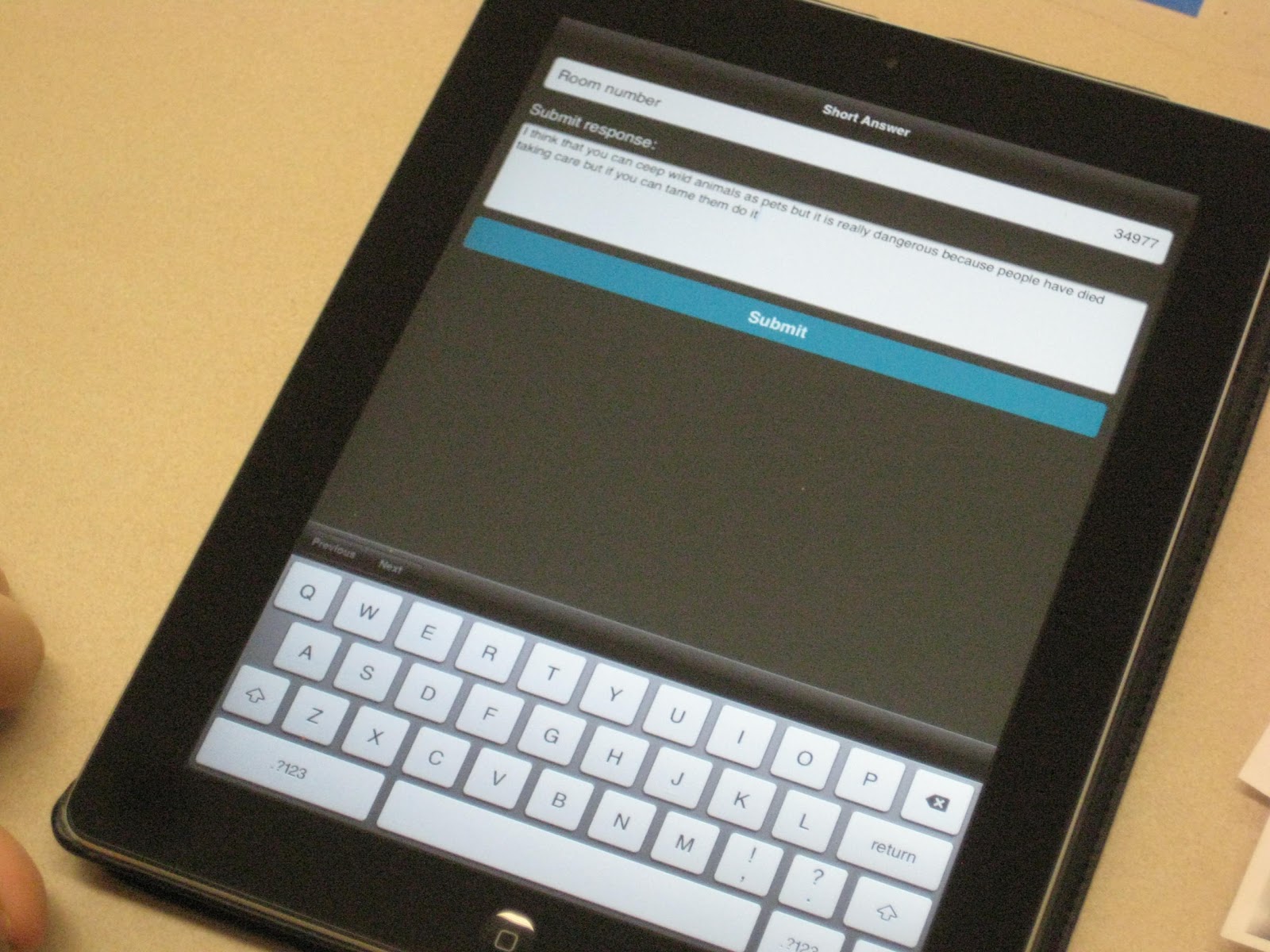
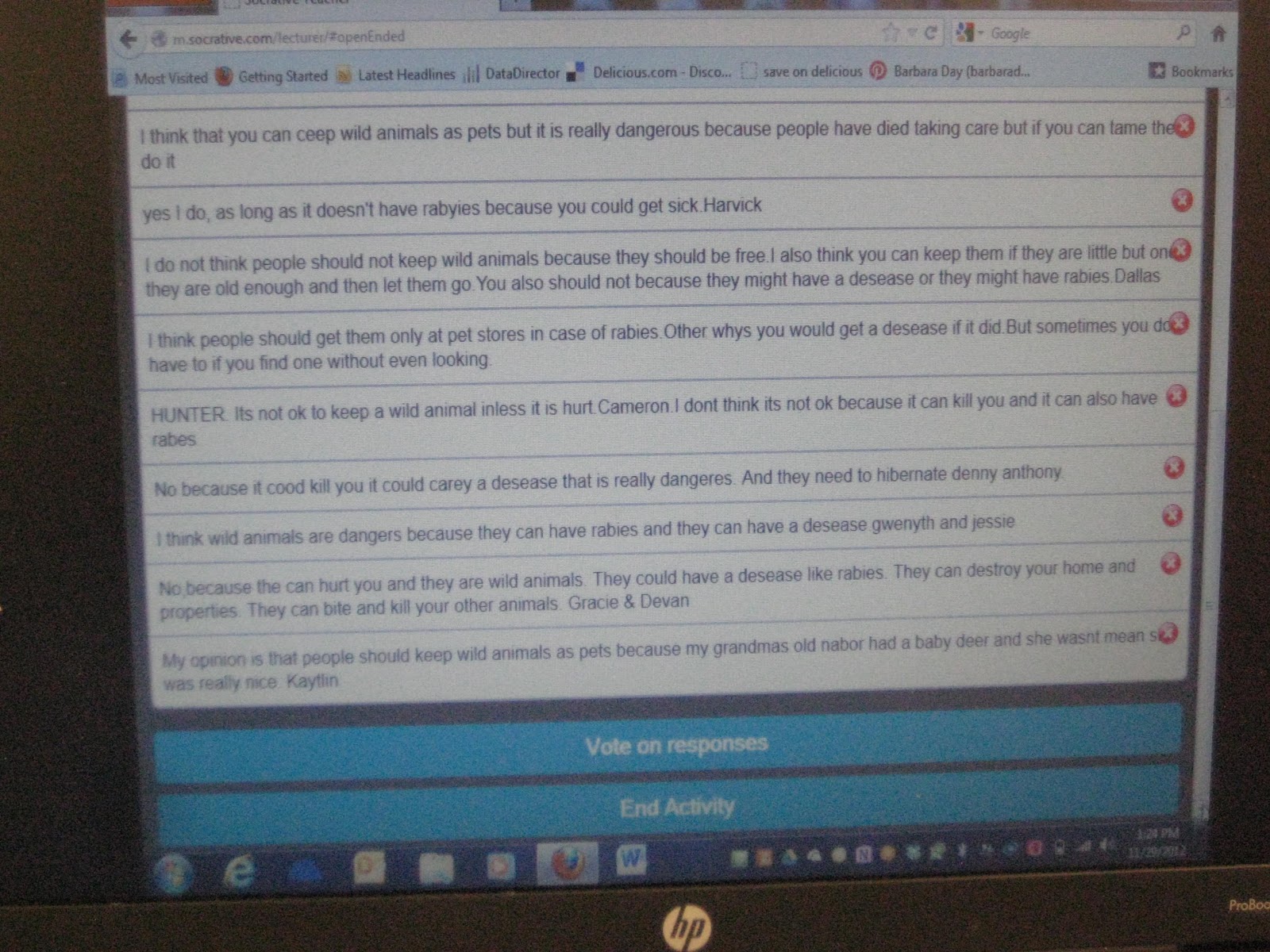
Last week I introduced my class to Socrative.  It is a website that you use as an interactive platform for your class.  You will find it at www.socrative.com.  One of my reading groups used it first to take a short quiz over a book we had just finished reading.  It was a great way for me to assess student understanding, at the same time that we wrapped up discussion of the book.

I first learned about Socrative last March at Edcamp Omaha.  The teacher sets up a virtual classroom.  Students enter the classroom by typing in the room number.  You can either have a single question activity or you can set up a quiz.


When you conduct a single question activity, the teacher asks the class a question verbally, and students respond in writing.  This is a great way to use an interactive whiteboard.  I don't have one, but by setting up my computer with my digital presenter, the whole class can see student answers.  It is a great way to keep students interested and engaged.  My students were eager to write and share their answers.  I narrate the answers as students submit their thoughts, which gives us the opportunity for additional discussion.

Here is an excellent tutorial by James Kapptie, which explains Socrative much better than I have.


I have got to try Space Race with my class. They are going to love it!

If you have not already tried Socrative, I encourage you to give it a try.  If you have used it, I am eager to hear some of the ways you have utilized it.  Please share your ideas.

Friday, August 17, 2012

Using an On-line Lesson Plan Book


Monday is the first official day back for teachers, and the kids will begin on Wednesday.  School may not have started yet, but I'm already beginning to work on my schedule and lesson plans.  For years I used a template that I had created on word.  It gave me my frame work.  All I had to do was update it periodically and type or hand write my plans into it and print it off.


Last year I decided to try out an on-line plan book.  I tried Planbook.com, and I love it. There are so many advantages to an on-line plan book.  If I'm at home and wondering what I had planned for science the next day, I can easily go on line, refresh my memory, and make changes to it, if need be.

Being able to bump or extend my plans to another day is one of my favorite aspects of Planbook.com.  I have a tendency to over plan, so there are many days that we didn't get to an activity, or I realize that it's going to take another day. Using the old fashioned method of handwritten plans, that meant a lot of rewriting of plans.  With Planbook.com all I have to do is hit bump, and I move the lesson plan to the next day, or extend it over as many days as I want.  I especially like the on-line plan book when it comes to long term planning.  I can easily lay out an entire unit at a time.

Having an on-line plan book, makes it easy to give my principal or colleagues access to my plans.  You can set up a code that students, or others can use to see your plan book.  If you teach and plan collaboratively, you can set it up so others can write plans as well.

If you need to include Common Core Standards in your lesson plans, those are built in and readily available.  If your state uses different standards or objectives, you can build a list of those.

For me the trickiest part was setting up my classes at the beginning of the year.  If you decide to try out Planbook.com, they have a series of 14 tutorials to help you get started.  You can create a template that provides the information that you need in your plans every day.  Here is an example of the tutorial for creating or editing a lesson plan.


Even though my plans are on-line, I do print a copy for a paper plan book.  I like to refer to it during the day, make notes, and check things off.  This also makes my lesson plans available to a substitute who probably would not have computer access.  You can choose to view your plans a week at a time, or daily.  At different times, I have printed them off both ways.


There is more than one on-line plan book.  This happens to be the one I use.  One of the reasons I chose it is that it is very reasonably priced, just $12 for the year.

I know this probably sounds like a commercial, but I don't work for Planbook.com and I'm not getting any compensation, though maybe I should try for a discount.  It's a product that has made lesson planning significantly easier for me, and I highly recommend it.

Saturday, July 7, 2012

Pinterest: Professional Development From the Comfort of Your Couch


Since I first began using it, Pinterest has become a very popular social networking site.  If you have never checked it out, it's a social networking site with a twist.  Instead of carrying on conversations with other people, you follow their ideas and interests.  Pinterest works like a virtual bulletin board.  You create boards about things you are interested in, and when you find websites, blogs, ideas or photos that you like, you pin them to your boards.

Like other social networks you follow other people, but in this case you really follow their pins and boards.  In other words you see the things they are pinning to their boards.  If you like it, you can repin it to one of your boards.  At the present time, I have 29 boards.  My boards center around education, food, my hobbies, and a few other topics.

If you are a very visual person, like I am, you will love it!  It is sort of an on-line magazine. In this magazine you choose the topics that you want to see.

During the year or so that I have been using Pinterest, I have been inspired to try many new things in my classroom.  I have been introduced to blogs I didn't know existed, and astounded by the dedication and creativity of teachers from around the world.  Pinterest has also prompted me to be more creative myself, and to put my own spin on things.


Of my twenty-nine boards, nine of them are devoted to education topics.  I have a Math Board.  When we were learning about geometry, I found many great ideas including this lesson for using Cheez-Its to learn about area and perimeter.


I discovered the world of Foldables on Pinterest, and I have a board for that.  I saw an idea using a foldable to create a book report for biographies.  I addapted that idea, and when we studied the Middle Ages, we created Medieval Paper Dolls.  Each person chose someone from the middle ages to learn about.  They used a pattern that I had, leftover from my days of teaching first grade, to make the paper doll.  They wrote a story in third person, describing life for this group of people,  then they also wrote a story from the point of view of their character.  All of this was in the little book that their person is holding.  I was very happy with the way this project turned out, and I will definitely do it again.  We were also satisfying the requirements of one of our Iowa Core Standards.


Right now there are many ideas being posted for beginning of the school year activities.  Last year my class created a Name Puzzle, which hung on our classroom door all year.  The original idea for this puzzle poster came from a blog from Germany.  While I had a year of German back in college, it wasn't enough to enable me to read the blog post, but I managed to read the picture well enough to come up with this "getting to know you" activity for our first day of school.  It was a great illustration of the fact that everyone in our class is unique, but without everyone, our class would be incomplete.

Good ideas are always a catalyst for more creativity.  Where are you finding inspiration as you move toward a new school year?  If you haven't tried Pinterest, I highly recommend it.  My recommendation does come with a warning.  Pinterest can be highly addictive.  You can spend hours exploring one great idea after another.


Sunday, July 1, 2012

iDeas for Our iPads


This week will be my fifth week of summer vacation.  Up until now, I have not wanted to think about school at all.  Now that July has begun, there is this tiny part of me that is beginning to plan, and longs for a little of the structure that is part of my school year. As I browse Pinterest, I'm starting to look at beginning of the year ideas with a little more interest.  Now don't get me wrong. I am in no way ready to go back to school just yet, but I am ready to do some of the creative planning for school that I really love.

Two weeks ago, when I was participating in professional development for math, we were asked to write some story problems for math.  I had one of my classroom iPads with me.  I started creating my story problems on the iPad using the app, Keynote.  This app was so easy to use and the slides looked fantastic.  It was easy to use the camera on the iPad2 and insert photos into the presentation.

I feel like I kind of missed the boat here last year.  While we used our iPads daily, we primarily used them to blog or research.  Next year my students are going to use Keynote to present their learning to the class.  There are countless ways that we can use this app.  I have no doubt they will be very successful.

Another app that we have on our iPads but have not used is iBrainstorm.  I plan to model using this app for class discussions.  After my 4th graders have seen it in use a few times, I think this is another app that will be very productive, especially for collaborative work.

My principal asked each of us to check out one of our iPads for the summer.  She wanted us to play with them and explore.  I have a feeling this was just what she had in mind.